MATLAB using the variable as a medium for the programmer to place the data input/output. There are several ways of writing the data that you can use according to the type of data to be processed. They are :
1. Single Numerical Data
in writing :
a = 5
translated by MATLAB as:
a =
5
2. Multidimensional Numerical Data (Array/Matrice)
In writing :
a = [ 5 10; 20 25]
Some thing that are important in the use of MATLAB command:
- Sign ( ; ) at the end of the command shows the command execution results are not displayed on the screen
- sign ( [] ) at the end of the command indicates the beginning and end of boundary element matrices
- sign ( ; ) in the declaration of the matrix used for the separation between rows in the matrix
- sign ( , ) in the declaration of the matrix is equal to spaces or separators between elements in a row matrix
If we press enter, program above will be translated by Matlab as follows:
a =
5 10
20 25
3. Text/String Data
In writing :
>> a = 'mike'
translated by Matlab as:
a =
mike
Important Tips:
1. Variable naming is Case Sensitive, it means MATLAB will differentiate between upper and lower case in naming. For example 'width' is not same with 'Width'.
2. Variable Name length can not exceed 31 characters
3. Naming variable must always begin with letter, not with numbers, symbol, etc.
File and Directory Management
MATLAB use searching path method to found file with *.m extension wich contain script and function. Searching sequence of MATLAB in execute command in the command window step by step is shown as follows, for example we write 'plate' as our command:
-MATLAB tries to identify whether 'plate' variable or not. The process will finish if 'plate' is variable and if not, Matlab assume that 'plate' is a file name with .M as the extension. It will continue to next step
-MATLAB tries to identify whether 'plate' standar function of matlab or not. If yes it will be executed and if no it will continue to next step.
-MATLAB will find Matlab file named plate.m in current directory. It will be executed if it is found and continue to next step if it is not found
-MATLAB will find Matlab file named plate.m in all direcotry which is registered in Matlab path searching list. It will be executed if it is found and will show a message below if not found.
>> plate
??? Undefined function or variable 'plate'
If message above is shown, it can be conclude that :
1. you type the file name incorrectly, or
2. your file is not on the directory known by Matlab
If you believed that you typed the file name correctly, you can do 2 options below:
1. Remove current directory to the directory where the file is located
For example the directory where your file stays is c:/mytraining. Write command below on matlab command prompt :
>> cd c:/mytraining
2.Add your directory to the Matlab path searching directory list.
open tool to manage this path searching by clicking set path on File menu:
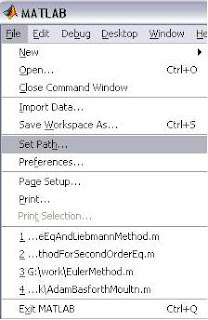
Next when the dialog set path is shown, click add folder to choose your file folder. Click save button and finish it by click close button. Now Your directory has registered on the Matlab path searching directory list.
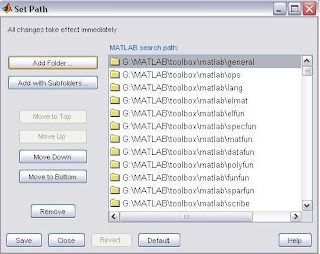
If you choose option 1, every time you run matlab application you should do option 1 again. But if you choose option 2, you don't have to do it again next time, unless your file directory has changed.
-MATLAB tries to identify whether 'plate' variable or not. The process will finish if 'plate' is variable and if not, Matlab assume that 'plate' is a file name with .M as the extension. It will continue to next step
-MATLAB tries to identify whether 'plate' standar function of matlab or not. If yes it will be executed and if no it will continue to next step.
-MATLAB will find Matlab file named plate.m in current directory. It will be executed if it is found and continue to next step if it is not found
-MATLAB will find Matlab file named plate.m in all direcotry which is registered in Matlab path searching list. It will be executed if it is found and will show a message below if not found.
>> plate
??? Undefined function or variable 'plate'
If message above is shown, it can be conclude that :
1. you type the file name incorrectly, or
2. your file is not on the directory known by Matlab
If you believed that you typed the file name correctly, you can do 2 options below:
1. Remove current directory to the directory where the file is located
For example the directory where your file stays is c:/mytraining. Write command below on matlab command prompt :
>> cd c:/mytraining
2.Add your directory to the Matlab path searching directory list.
open tool to manage this path searching by clicking set path on File menu:

Next when the dialog set path is shown, click add folder to choose your file folder. Click save button and finish it by click close button. Now Your directory has registered on the Matlab path searching directory list.

If you choose option 1, every time you run matlab application you should do option 1 again. But if you choose option 2, you don't have to do it again next time, unless your file directory has changed.

Work Using Matlab Files
Work using Matlab files are often used by experts programmer. Advantage to work with matlab files that will allow you debug the entire program. Especially for long script program and it takes long time to compelete.
To use matlab file or M file, just type "edit" in command window and press enter to call Matlab Editor. After that, you can type your program in Matlab editor. In this example we can use the following program:
%-----------------------
%Training Program 1
%Matlab Programming
%----------------------
clear all;
clc;
disp('-----------------');
disp('Training Program 1');
disp('-----------------');
length = 5;
width = 5;
area = length*width;
disp(['area ->' num2str(area)]);
Copy or type program above to your Matlab editor. After that save it as training01.m to c:/mytraining directory. Back to Command Window and type "cd c:/mytraining". This is done in order that Matlab recognize our Matlab file location.
Press enter and type our matlab file name (training01) .
Press enter and the program will be executed. output result will be shown as follows :
-----------------
Training Program 1
-----------------
area -> 25
>>
As a comparison you can write program above in command prompt matlab directly as follows :
>> length = 5;
>> width = 5;
>> area = length*width;
>> disp(['area ->' num2str(area)]);
It will be same if we write it in matlab editor :
length = 5;
width = 5;
area = length*width;
disp(['area ->' num2str(area)]);
So exclude ">>", you can write it on Matlab Editor and save it as matlab file.
Tips:
Makesure you don't give the name of variable or matlab file name same with default name which recognized by matlab. It is important to avoid overlapping naming.
To use matlab file or M file, just type "edit" in command window and press enter to call Matlab Editor. After that, you can type your program in Matlab editor. In this example we can use the following program:
%-----------------------
%Training Program 1
%Matlab Programming
%----------------------
clear all;
clc;
disp('-----------------');
disp('Training Program 1');
disp('-----------------');
length = 5;
width = 5;
area = length*width;
disp(['area ->' num2str(area)]);
Copy or type program above to your Matlab editor. After that save it as training01.m to c:/mytraining directory. Back to Command Window and type "cd c:/mytraining". This is done in order that Matlab recognize our Matlab file location.
Press enter and type our matlab file name (training01) .
Press enter and the program will be executed. output result will be shown as follows :
-----------------
Training Program 1
-----------------
area -> 25
>>
As a comparison you can write program above in command prompt matlab directly as follows :
>> length = 5;
>> width = 5;
>> area = length*width;
>> disp(['area ->' num2str(area)]);
It will be same if we write it in matlab editor :
length = 5;
width = 5;
area = length*width;
disp(['area ->' num2str(area)]);
So exclude ">>", you can write it on Matlab Editor and save it as matlab file.
Tips:
Makesure you don't give the name of variable or matlab file name same with default name which recognized by matlab. It is important to avoid overlapping naming.

 Posts
Posts


